Members, roles and workspace
For owners and admins: invite people, roles and groups, models and company rules.
This page is for owners and admins. Open the settings from the user menu at the bottom left. Admin areas are under Workspace and User management.
Invite people
- Open Settings › Members and click Invite.
- Enter one or more email addresses, separated by commas or line breaks. With names it works like this:
Anna Muster <anna@firma.ch>. - Choose the Role and send the invitation.
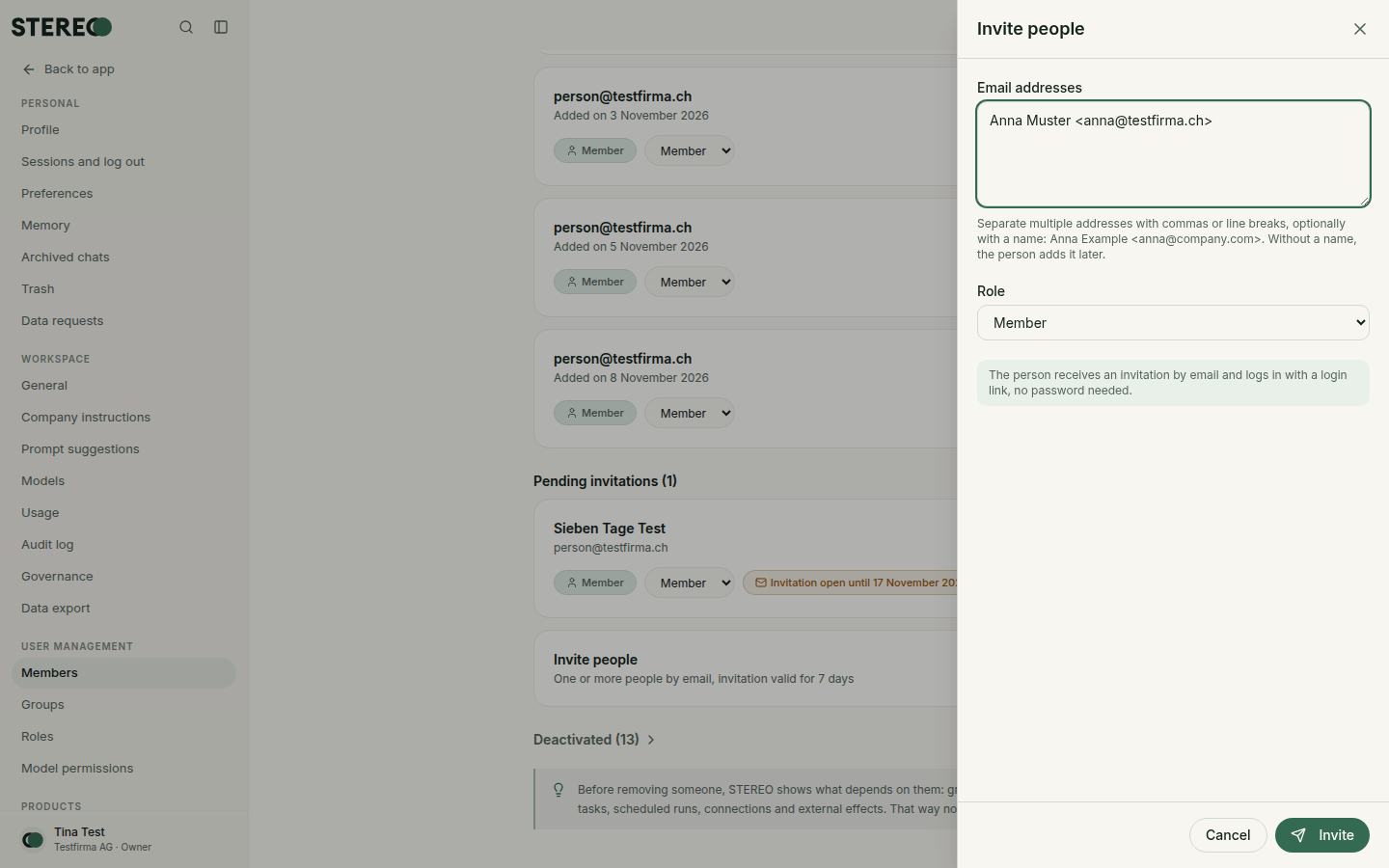
People receive an email and sign in without a password, see Getting started. An invitation is valid for 7 days. Pending invitations shows who hasn't signed in yet, and you can Resend the invitation.
When someone leaves the company, deactivate or remove them in the member list. Before that, STEREO shows what is linked to the person, for example groups or connections. See Deactivate or remove people.
Roles
There are three fixed roles. Settings › Roles shows exactly what they may do.
| Role | May |
|---|---|
| Owner | everything an admin may, plus assign the owner role and export the workspace |
| Admin | manage members, groups, models, integrations, company instructions and usage |
| Member | use STEREO, manage own chats, files, prompts, memory and integration accounts |
Groups
Under Settings › Groups you bundle people, for example "Accounting". A group defines which integrations its members may use and can have its own instructions that apply to every chat of its members.
Models
Under Settings › Models you enable models for the workspace and choose the default model. Each model shows where it runs. Model permissions restricts which models a person sees.
Company instructions and prompt suggestions
- Company instructions: apply to all chats in the workspace, for example tone, terminology or "We are a fiduciary office in Bern".
- Prompt suggestions: starters everyone sees on the empty chat page.
- Team memory: facts for everyone, see Memory.
General
Under Settings › General you change the workspace name, region and time zone, web search and the tools in the + menu. For tools, "On" and "Off" are the default each person can change for themselves. "Locked" removes a tool entirely.
The owner can also delete the whole company here, see Delete the company.
Integrations and rights per action
Which integrations are allowed and what STEREO may do with them is set per action, see Manage integrations.
Usage limit
Settings › Usage shows how much each person can use, see Usage and limits.
Audit log
Settings › Audit log records, unchangeably, who carried out which important action and when, for example invitations, role changes or actions in connected tools.
Data export
Owners export the whole workspace under Settings › Data export with Request export, with a second confirmation. When the export is ready, an email arrives. All members are informed.
Add a new company
During the beta, the STEREO team sets up new companies. Write to hy@hyhy.ch with the company name and the name and email of the person who will run the workspace.
Was this helpful?