Connect integrations
Connect tools such as Bexio, Outlook or Google and understand when STEREO asks first.
With integrations, STEREO works directly with the tools your company already uses. STEREO looks things up on its own and asks before it changes or sends anything. The available integrations are listed under All integrations.
Connect an integration
- In the sidebar under Build, click Integrations.
- Choose the tool and click Connect.
- Read the overview and click Continue to …. Sign in to the tool and confirm the permissions.
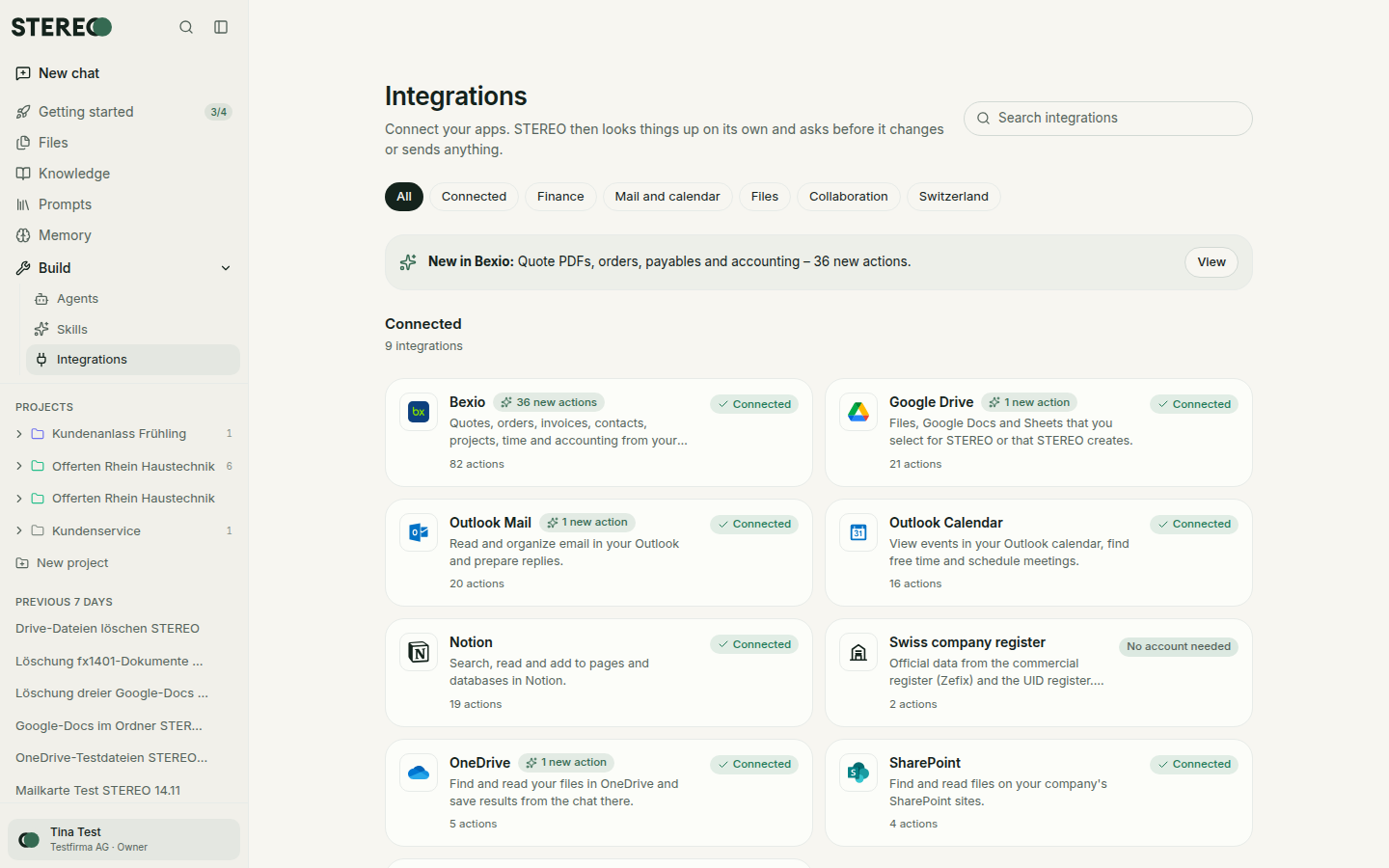
It then shows Connected, and Try it offers examples that start a chat right away.
- Request account instead of Connect: your admin approves new connections first. Until then it shows Waiting for approval.
- Admins connect only: your admin sets up accounts for this integration.
- Reconnect or Extend connection: the tool needs a new sign-in or a permission is missing. Your settings are kept.
You can also start right in the chat. If you ask "What's in my calendar tomorrow?", STEREO shows a card to connect.
What STEREO may do: actions
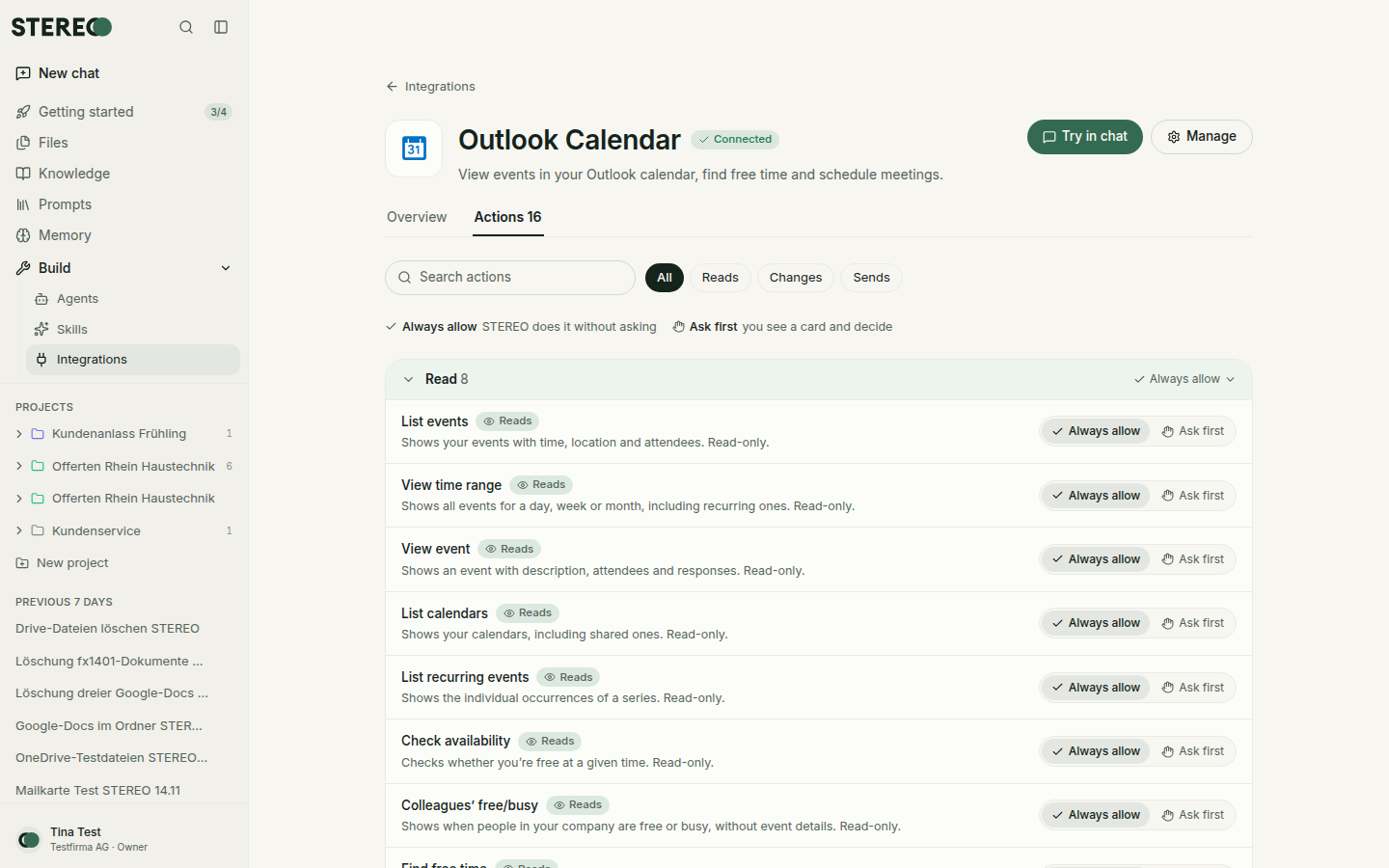
Every integration consists of actions, for example "search emails" or "create quote". The Actions tab shows what each action does and how it is set:
| Type | What happens first |
|---|---|
| Reads | No question. STEREO shows you the result in the chat. |
| Draft | No question. The draft stays with you until you send it yourself. |
| Changes | A card with all details. You can adjust, allow or decline. |
| Sends | A card with recipient and content. Always asks. |
| Deletes | A card with what will be deleted. Always asks. |
| Payment | A card with recipient, account and amount. Always asks. |
Each action has three levels: Always allow, Ask first and Blocked. Your admin sets the upper limit. You can only make an action stricter for yourself, unless your admin allows loosening.
Approvals
When STEREO wants to change or send something, it waits for your OK and shows a card in the chat with all details, such as recipient, subject, text, file name or amounts.
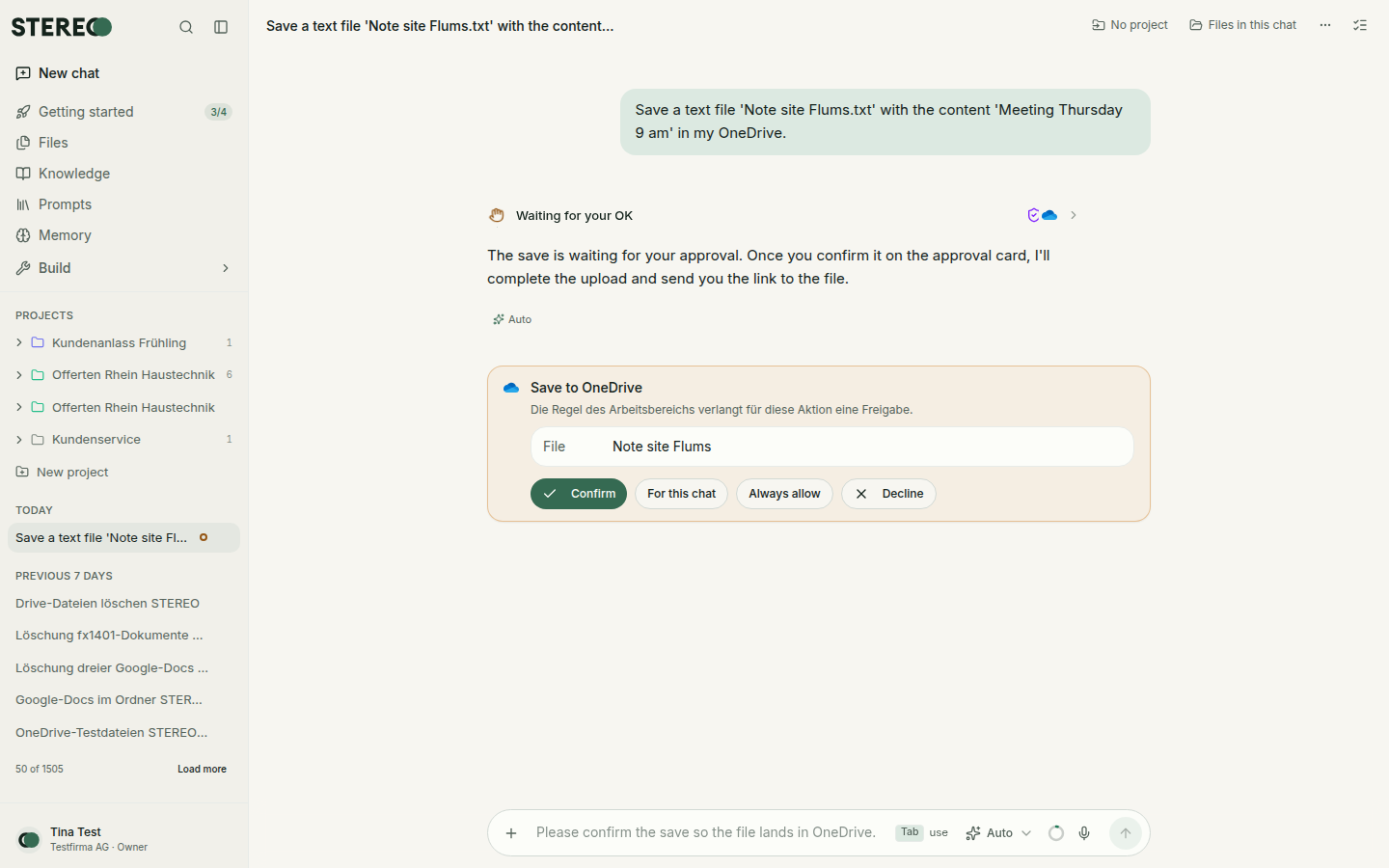
- Confirm: STEREO carries out the action.
- Decline: nothing happens. To change something, just say so in the chat.
- For this chat: this action runs without asking in this chat from now on.
- Always allow: this action always runs without asking from now on.
Sending, deleting and payments always ask, even if you allow everything else. Withdraw remembered approvals any time under Settings › Preferences › Remembered approvals.
Changing details before confirming and more: see Approvals.
Several accounts
Add account connects a second account for the same tool. Make default sets which one STEREO uses first. Otherwise STEREO asks.
Outlook Mail, Outlook Calendar, OneDrive, SharePoint and Teams share one Microsoft connection: connect one and the others are connected too.
Disconnect
Open the integration and choose Disconnect in the menu under Your connection. STEREO no longer has access. You can also revoke access in the tool itself, for example in your Microsoft or Google account.
Integration missing?
At the bottom of the Integrations page, click Request an integration and say what you need it for. Until then you can drag files from the tool into the chat.
Was this helpful?