Chat
Ask questions, choose a model, add details while STEREO works and answer follow-up questions.
Start a chat
Click New chat at the top left, type your question and send it with the arrow at the bottom right or the Enter key. Shift+Enter adds a line break.
STEREO shows what it is working on, for example "Searching the web" or "Creating the Excel sheet". The stop button cancels an answer.
Model and thinking level
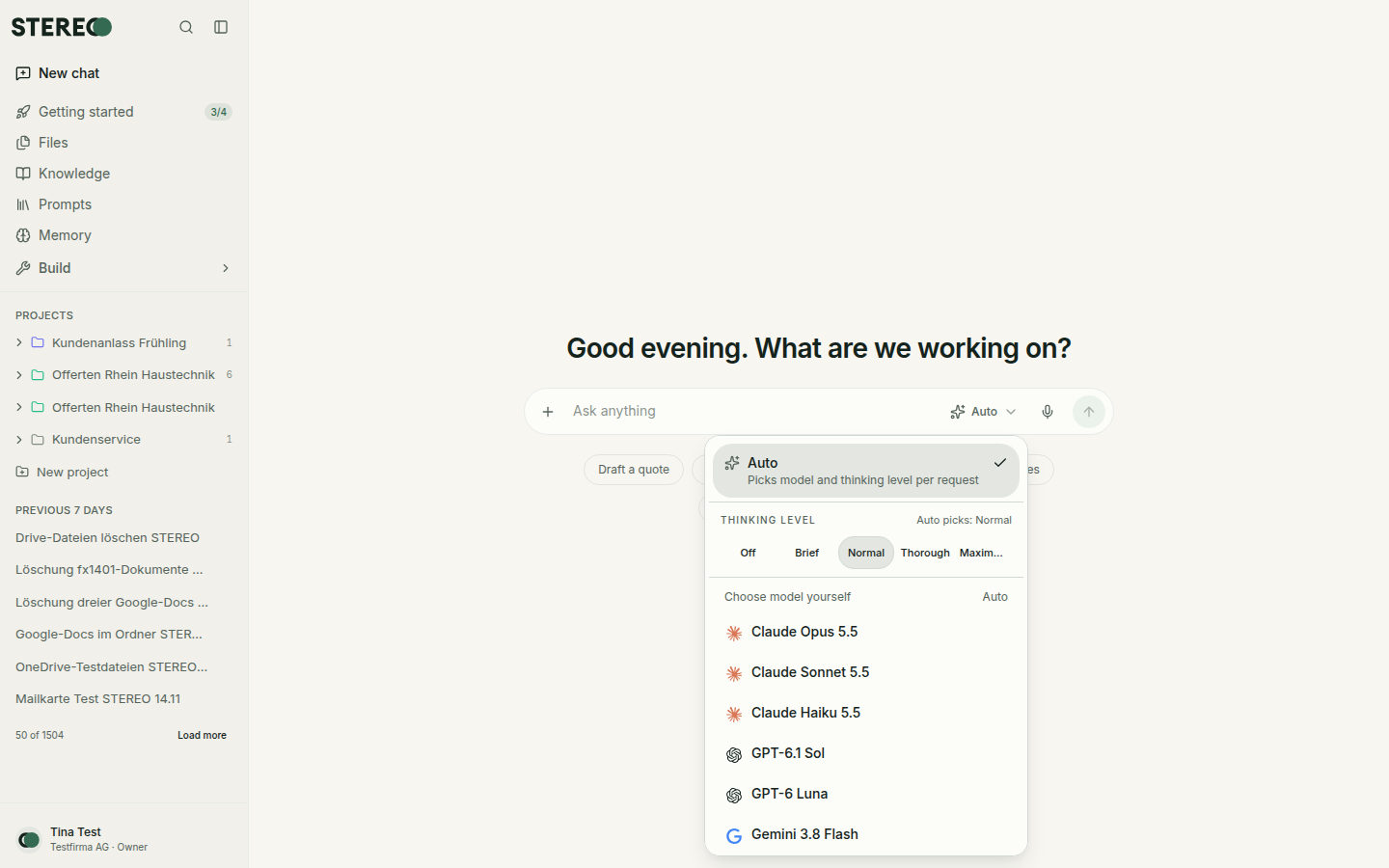
Choose the model at the bottom of the input field:
-
Auto (recommended): STEREO picks the right model for each task. Simple questions are answered quickly, demanding tasks get a stronger model.
-
Choose model yourself: you pick a model, for example Claude, GPT or Gemini. Your admins decide which models are available.
-
Thinking level: from Off through Brief, Normal and Thorough to Maximum. More thinking means more thorough answers, but takes longer and uses more of your limit. With Auto, STEREO chooses the level itself.
Set your default for new chats under Settings › Preferences › Default chat model. The choice is kept per chat.
Tools in the "+" menu
The + in the input field attaches files, assigns the chat to a project, picks an integration and switches tools on or off for this chat:
- Web search: searches, reads and opens web pages, see Web search.
- Run code: calculates, analyses tables and creates charts.
- Memory: brings your memory and past chats into the conversation, see Memory.
Choose what new chats start with under Settings › Preferences › Tools. A tool marked "Locked by admin" is not available.
Add details while STEREO works
You don't have to wait until STEREO is done. Just keep typing and send, for example "Only customers from the canton of St. Gallen". Your message then shows "Will be included in the next step…". STEREO takes the addition into account without starting over.
Answer follow-up questions
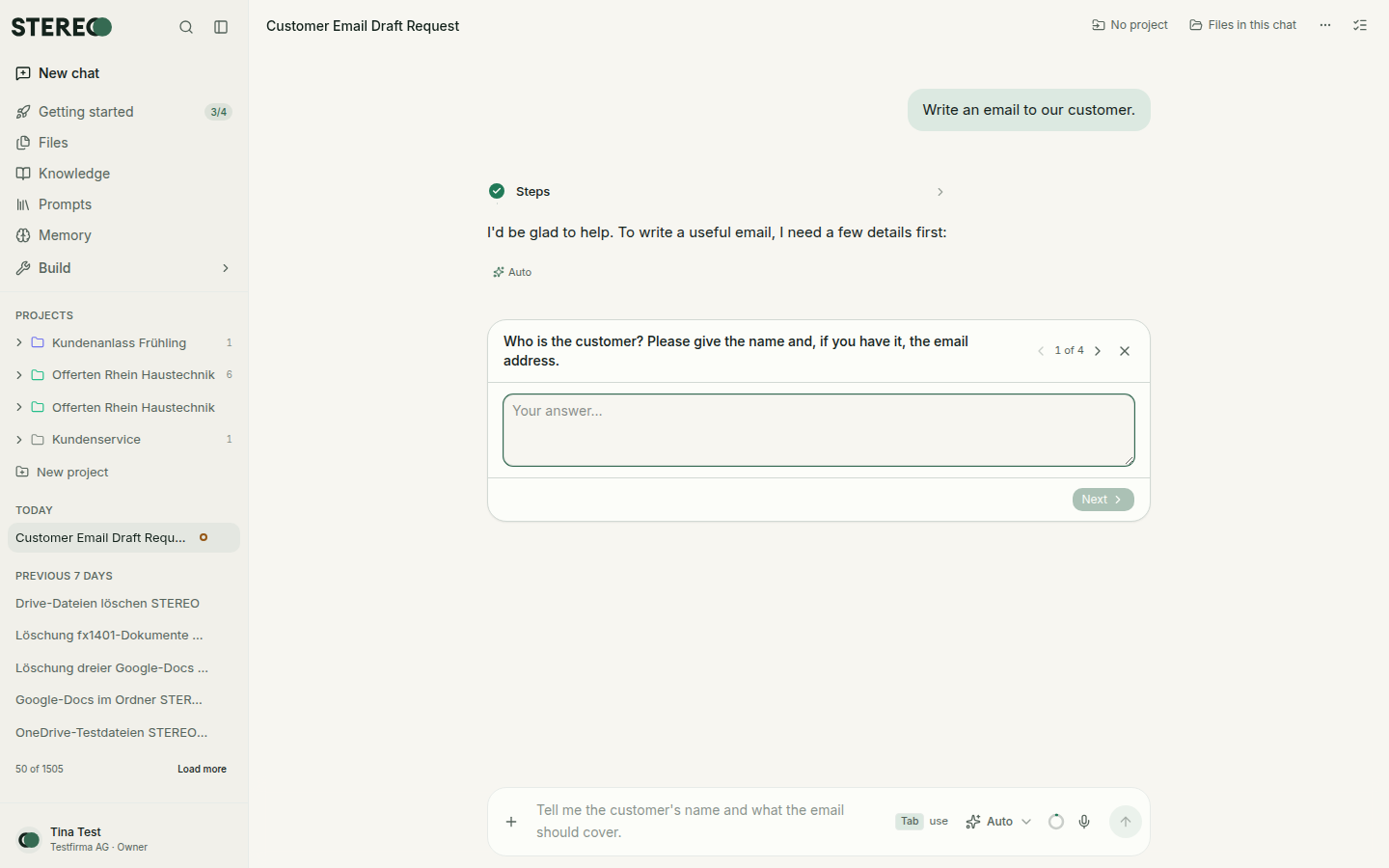
If a task is unclear, STEREO asks a short question, often with answers to click. You can also just reply in your own words. For bigger research tasks, STEREO first clarifies the goal, time frame and format, then gets started.
Approvals
Before STEREO changes or sends something in a connected tool, it shows you a card with all details. Nothing happens until you confirm. More under Integrations.
Edit, dictate, read aloud
- Edit a message: edit your question and send it again. The arrows switch between versions.
- Dictate: click the microphone in the input field, speak and click again. The text appears in the input field.
- Read aloud: STEREO reads any answer aloud. Choose the voice under Settings › Preferences › My read-aloud voice.
- Suggested next message: after an answer, a possible next step appears in grey in the input field. Press Tab to accept it. It is never sent automatically.
Manage chats
Use the three dots next to a chat in the sidebar:
- Rename: STEREO gives every chat a title, you can change it.
- Move to a project, see Projects.
- Export as Markdown, PDF or Word.
- Archive: the chat disappears from the list and is kept under Settings › Archived chats.
- Delete: the chat goes to the Trash and is deleted for good after 30 days. Until then, restore it under Settings › Trash.
Press ⌘K (Windows: Ctrl+K) to search all your chats, including archived ones.
When something goes wrong
If a message fails before STEREO starts to answer, it stays in the chat with its attachments. Below it you see the error with Try again. This sends the same message with the same attachments again. If your usage limit is used up, see Usage limit reached.
If an answer stops along the way, you see "Interrupted by a technical issue". Just send your message again.
Long chats
When a chat gets very long, STEREO summarises the earlier part in the background. You can just keep working. Long texts you pasted are saved as a file with your message, and STEREO reads them again when needed. For a new topic, a new chat is usually better.
Feedback on answers
Thumbs up or down below an answer tells us what worked and what didn't. For general feedback, use Give feedback in the user menu.
Was this helpful?